How to Buy a Replacement Laptop Battery Without Choosing the Wrong Model
A weak laptop battery can make a good computer feel unreliable. The machine may shut down early, charge slowly, run hot, or last only a few minutes away from the charger. Replacing the battery can be a practical way to extend the life of a laptop, but only if the new battery matches the device correctly and comes from a source that provides clear compatibility information.
For buyers comparing online options, stores that sell replacement laptop batteries should be evaluated by model matching, part numbers, warranty terms, shipping handling, and safety guidance. A battery is not a generic accessory. The wrong one can fail to fit, fail to charge, or create avoidable risk.
Confirm That the Battery Is the Problem
Before ordering a replacement, check whether the battery is actually failing. Modern laptops can report battery health through built-in diagnostics, BIOS tools, manufacturer utilities, or operating system reports. Symptoms such as short runtime, sudden shutdowns, high cycle count, or poor full-charge capacity suggest battery wear.
However, not every power issue is caused by the battery. A bad charger, damaged charging port, firmware issue, motherboard fault, or power settings can create similar symptoms. If the laptop only works at a certain charger angle, for example, the battery may not be the main problem.
If the battery is swollen, stop using the laptop and handle it carefully. Do not press, puncture, bend, or continue charging a swollen battery.
Match the Laptop Model and Battery Part Number
The first buying step is compatibility. Laptop brands often sell many models with similar names but different batteries. Even one product line may use several battery part numbers depending on screen size, motherboard layout, or production year.
Check the exact laptop model rather than only the brand. Then check the battery part number if accessible. On some laptops, the battery code is printed on the internal battery pack. If opening the laptop is not appropriate, use the manufacturer support page, service manual, or system information tools to identify the model.
Compare:
- Laptop model number
- Battery part number
- Voltage
- Capacity
- Connector type
- Physical shape
- Screw locations or mounting design
Do not buy only because a listing says “for HP,” “for Dell,” or “for Lenovo.” That is too broad.
Understand Capacity and Voltage
Capacity may be listed in mAh or Wh. A higher number can mean longer runtime, but it must still match the laptop’s design. Voltage should match the compatible specification. A battery with the wrong voltage or connector should not be forced into use.
Some replacement batteries are standard capacity, while others are extended capacity. Extended capacity can help runtime, but it may change the physical size or weight. For slim laptops, the battery shape usually must match exactly.
If two listings seem compatible but show different specifications, ask the seller before ordering.
Check Seller Information
A reliable battery seller should provide clear compatibility tables, part numbers, photos, warranty terms, and contact support. Vague listings increase the chance of ordering the wrong part. Product photos should show the connector and pack shape where possible.
Check return policy before purchase. Battery compatibility mistakes can happen, especially when laptop model names are confusing. A clear return or exchange process reduces risk.
Warranty matters too. Laptop batteries are consumable parts, but a new replacement should not fail immediately. Read what the warranty covers and what conditions may void it.
Shipping and Storage
Lithium batteries require careful shipping and storage. Sellers should package batteries securely and follow relevant shipping rules. When the battery arrives, inspect the package. Do not use a battery that appears swollen, leaking, crushed, punctured, or badly deformed.
Store unused batteries in a cool, dry place away from heat and metal objects. Do not leave them in a hot car or near direct sunlight.
Installation Caution
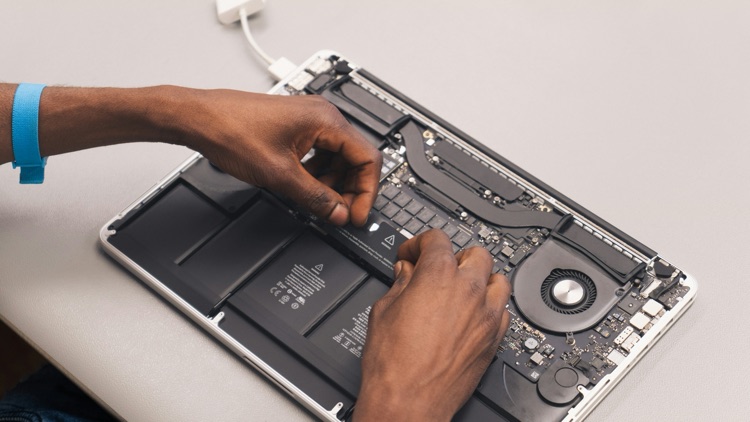
Some older laptops have external batteries that slide out easily. Many modern laptops use internal batteries that require removing the bottom cover and disconnecting a cable. If you are not comfortable with small screws, fragile clips, internal cables, or static-sensitive parts, use a repair technician.
Before installation, power down the laptop and disconnect the charger. Do not use metal tools to pry near the battery pack. If the battery is swollen, do not attempt to force it out.
After installation, follow the seller or laptop manufacturer’s guidance for first charge and calibration. It may take a few charge cycles for battery reporting to stabilize.
Final Buying Checklist
Before ordering, confirm:
- Exact laptop model
- Battery part number
- Voltage and capacity
- Connector and shape
- Seller compatibility list
- Warranty and return policy
- Shipping destination and delivery time
- Safety condition on arrival
Final Advice
A replacement laptop battery can be a sensible repair, but the buying decision should be careful. Match the part number, verify the seller, read warranty terms, and treat damaged or swollen batteries seriously. A few extra minutes of checking can prevent wasted money and reduce safety risk.